Factories > Management & observability
Benchmarking factory agent configurations
# Benchmarking factory agent configurations :::note Warp Factories is in **Early Access** and available to a limited set of teams. [Request access](https://www.warp.dev/factories/request-access) to use it with your team. ::: Benchmarks compare model and runner configurations for one factory agent on the same fixed tasks. Use a benchmark to test a change on representative work before you apply it to your factory. This video shows how to compare benchmark results for quality and cost before changing a coding agent's configuration. <VideoEmbed url="https://www.youtube.com/watch?v=LKx5MeUsptQ" title="Comparing factory benchmark results to reduce coding agent costs" /> ## How benchmarks work A benchmark helps you choose an agent configuration based on repeatable evidence. Run representative tasks with different configurations, then compare their results before you change a live factory. A benchmark suite is a reusable collection of tasks that evaluates one factory agent. Each task has a prompt and "Correctness criteria," which tell the built-in Correctness Scorer what a successful trial must do. A trial is a single run of a task under one configuration. Repetitions create additional trials. When you launch a suite, choose the configurations, Scorers, and repetitions to compare. Warp runs the trials, then scores the completed ones. The run keeps those inputs, so later changes to the suite do not change its past results. <figure style={{ maxWidth: "563px" }}>  <figcaption>The Runs tab for a benchmark suite.</figcaption> </figure> Use separate suites for focused questions: * **Factory default** - Compare models and runners to choose the default configuration for a coding agent. * **Frontend changes** - Compare configurations on representative frontend tasks before applying one to that workflow. ## Create and run a benchmark To use Benchmarks, you need a factory with an agent to evaluate. Use a completed run from that agent when you want a task to reproduce real work, or write a task yourself. This video shows how to turn your team's coding tasks into a reusable benchmark suite. <VideoEmbed url="https://www.youtube.com/watch?v=mojpQjwBXN0" title="Creating a model benchmark from your team's coding tasks" /> 1. In the <a href=https://platform.warp.dev>Warp Factories web app</a>, open your factory, click **Benchmarks**, then click **New**. <figure style={{ maxWidth: "563px" }}>  <figcaption>The Benchmarks page for a factory.</figcaption> </figure> 2. Enter a name and optional description, then choose the agent to evaluate. The suite runs every task as that agent. <figure style={{ maxWidth: "563px" }}>  <figcaption>The benchmark editor with a selected agent.</figcaption> </figure> 3. Click **Add task**. Warp saves the benchmark, then opens task setup. 4. Select a completed run, then click **Add task**. To write a task instead, click **Start from scratch instead**. <figure style={{ maxWidth: "375px" }}>  <figcaption>The task source picker.</figcaption> </figure> 5. Review the task prompt and enter "Correctness criteria" for the task. <figure style={{ maxWidth: "375px" }}>  <figcaption>The task editor for a benchmark suite.</figcaption> </figure> 6. Click **Run**. In the launch dialog, choose the model and runner for each configuration. Optionally mark one configuration as the baseline. Third-party harness comparisons are not available yet. 7. Add configurations, select Scorers, and set "Repetitions." The dialog shows the number of trials created. More trials and Scorers increase the run's cost. <figure style={{ maxWidth: "736px" }}>  <figcaption>The launch configuration for a benchmark run.</figcaption> </figure> 8. Click **Run benchmark**. The benchmark page shows its status and scored trials. You can cancel a running or scoring benchmark. ## Review benchmark results After the run completes, review the result as a comparison, not as a universal model ranking: <figure style={{ maxWidth: "736px" }}>  <figcaption>A completed benchmark result and comparison chart.</figcaption> </figure> * **Overall recommendation** - Identifies the highest-quality configuration when at least two configurations have comparable results. * **Additional recommendations** - Highlight the most efficient and lowest-cost configurations when the result supports those comparisons. * **Comparison chart** - Compare the selected result dimensions across configurations. * **Overall table** - Compare each Scorer's average and the combined Overall value. Expand a configuration, task, and repetition to inspect its individual trials. * **Scorer grids** - Show each task's results across configurations for a selected Scorer. <figure style={{ maxWidth: "736px" }}>  <figcaption>Expanded trial results for a configuration.</figcaption> </figure> The run's "Total cost" includes model usage for trials and Scorer usage. It estimates those costs from credits at your team's current rate, so it is not a billed amount. A failed or cancelled benchmark shows only results that finished scoring before the run stopped. ## Apply a result Change one configuration at a time. If the evidence supports a candidate, update the agent's model or runner in the factory dashboard, or submit the change through your [factory definition](/factories/factory-as-code/). Keep the relevant Scorers active, then compare later production runs with the baseline you recorded before the change. For version-controlled factories, define reusable suites in `benchmarks/<suite-slug>/suite.yaml` and their tasks in `benchmarks/<suite-slug>/tasks/<task-slug>.yaml`. See [benchmark suite files](/factories/factory-as-code/#benchmarkssuite-slugsuiteyaml). ## Related pages * [Measure and improve a factory](/factories/measure-and-improve/) - Configure Scorers and use benchmark evidence in an improvement loop. * [Factory dashboard](/factories/factory-dashboard/) - Track factory work, runs, and benchmark suites. * [Factory definition syntax](/factories/factory-as-code/) - Define factories and benchmark suites as code.Tell me about this feature: https://docs.warp.dev/factories/benchmarks/Benchmarks compare a factory agent's model and runner configurations on fixed tasks. Use the results to choose a production configuration.
Benchmarks compare model and runner configurations for one factory agent on the same fixed tasks. Use a benchmark to test a change on representative work before you apply it to your factory. This video shows how to compare benchmark results for quality and cost before changing a coding agent’s configuration.
How benchmarks work
Section titled “How benchmarks work”A benchmark helps you choose an agent configuration based on repeatable evidence. Run representative tasks with different configurations, then compare their results before you change a live factory.
A benchmark suite is a reusable collection of tasks that evaluates one factory agent. Each task has a prompt and “Correctness criteria,” which tell the built-in Correctness Scorer what a successful trial must do. A trial is a single run of a task under one configuration. Repetitions create additional trials.
When you launch a suite, choose the configurations, Scorers, and repetitions to compare. Warp runs the trials, then scores the completed ones. The run keeps those inputs, so later changes to the suite do not change its past results.
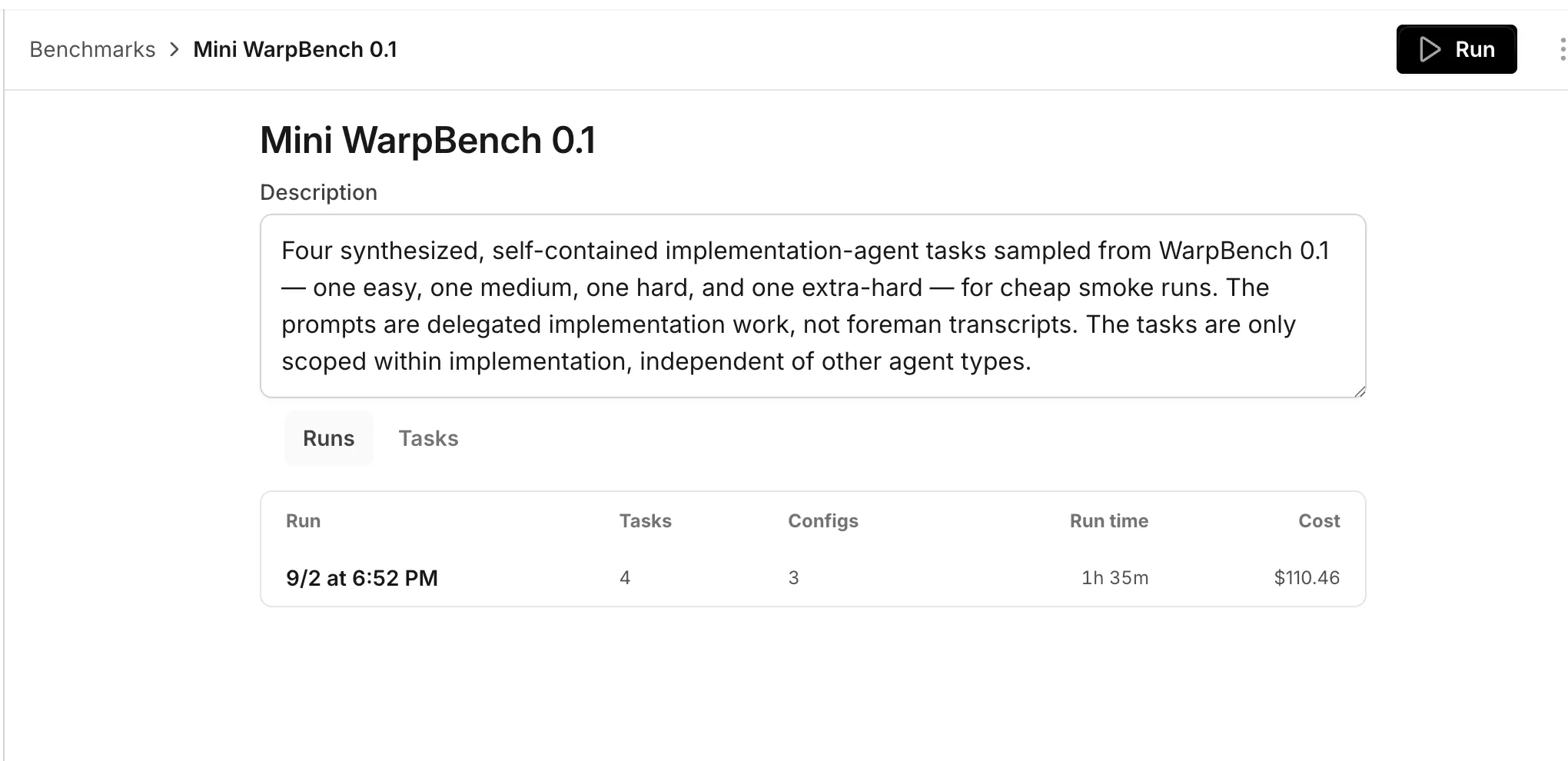
Use separate suites for focused questions:
- Factory default - Compare models and runners to choose the default configuration for a coding agent.
- Frontend changes - Compare configurations on representative frontend tasks before applying one to that workflow.
Create and run a benchmark
Section titled “Create and run a benchmark”To use Benchmarks, you need a factory with an agent to evaluate. Use a completed run from that agent when you want a task to reproduce real work, or write a task yourself.
This video shows how to turn your team’s coding tasks into a reusable benchmark suite.
-
In the Warp Factories web app, open your factory, click Benchmarks, then click New.
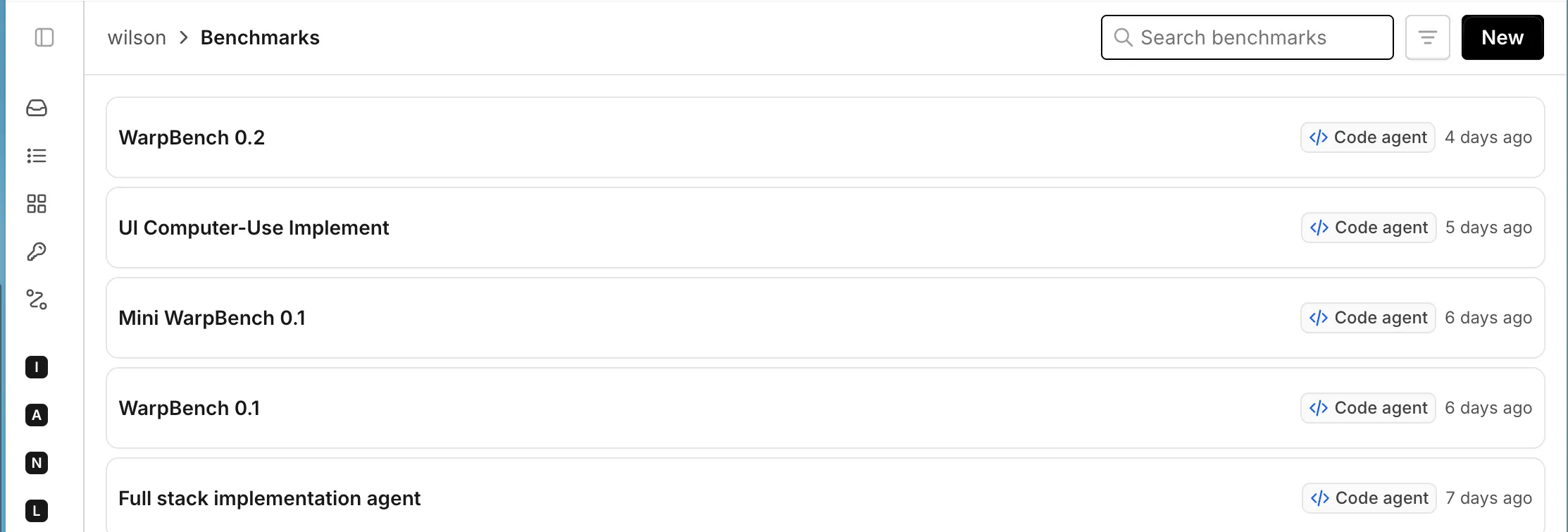
The Benchmarks page for a factory. -
Enter a name and optional description, then choose the agent to evaluate. The suite runs every task as that agent.
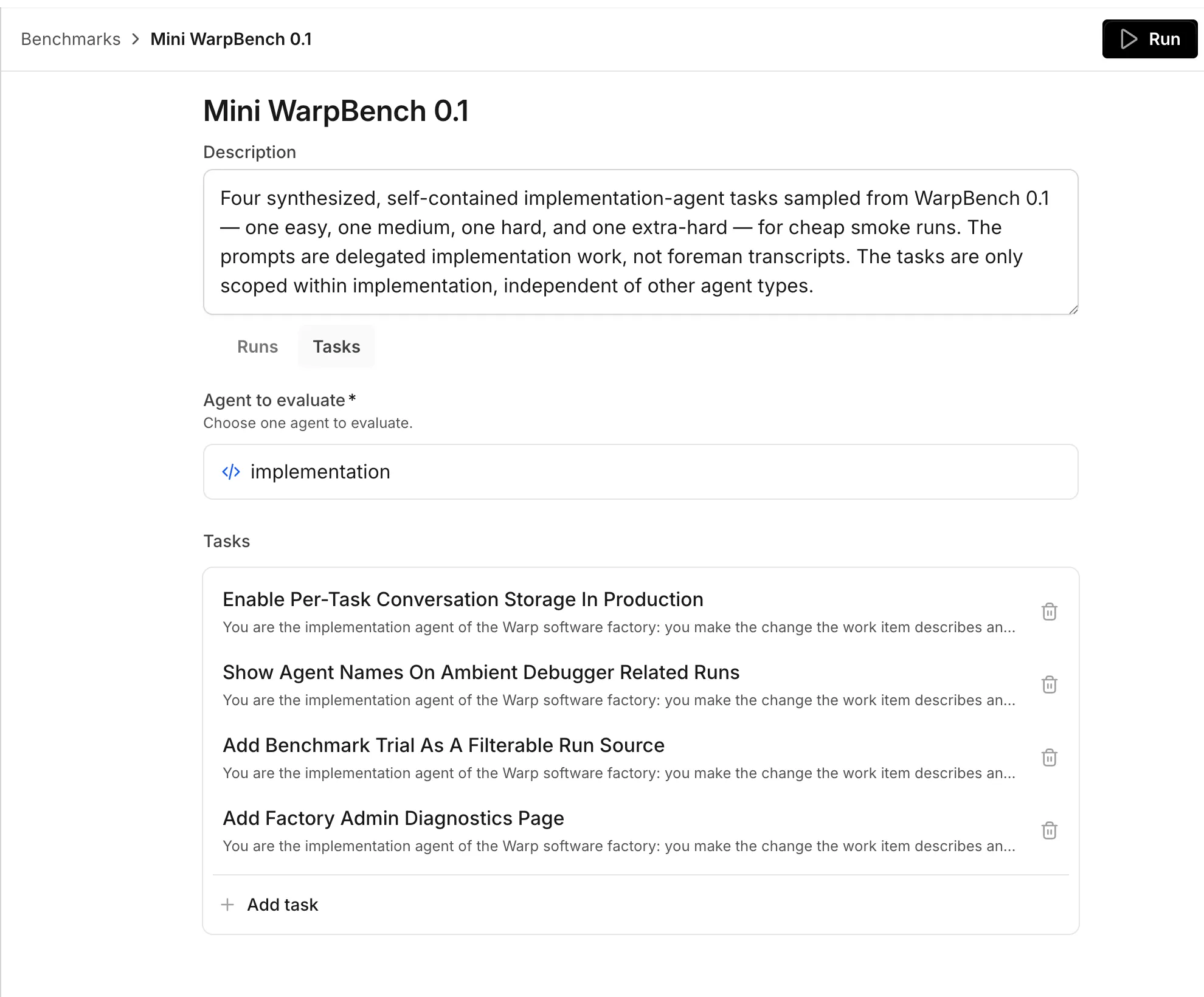
The benchmark editor with a selected agent. -
Click Add task. Warp saves the benchmark, then opens task setup.
-
Select a completed run, then click Add task. To write a task instead, click Start from scratch instead.
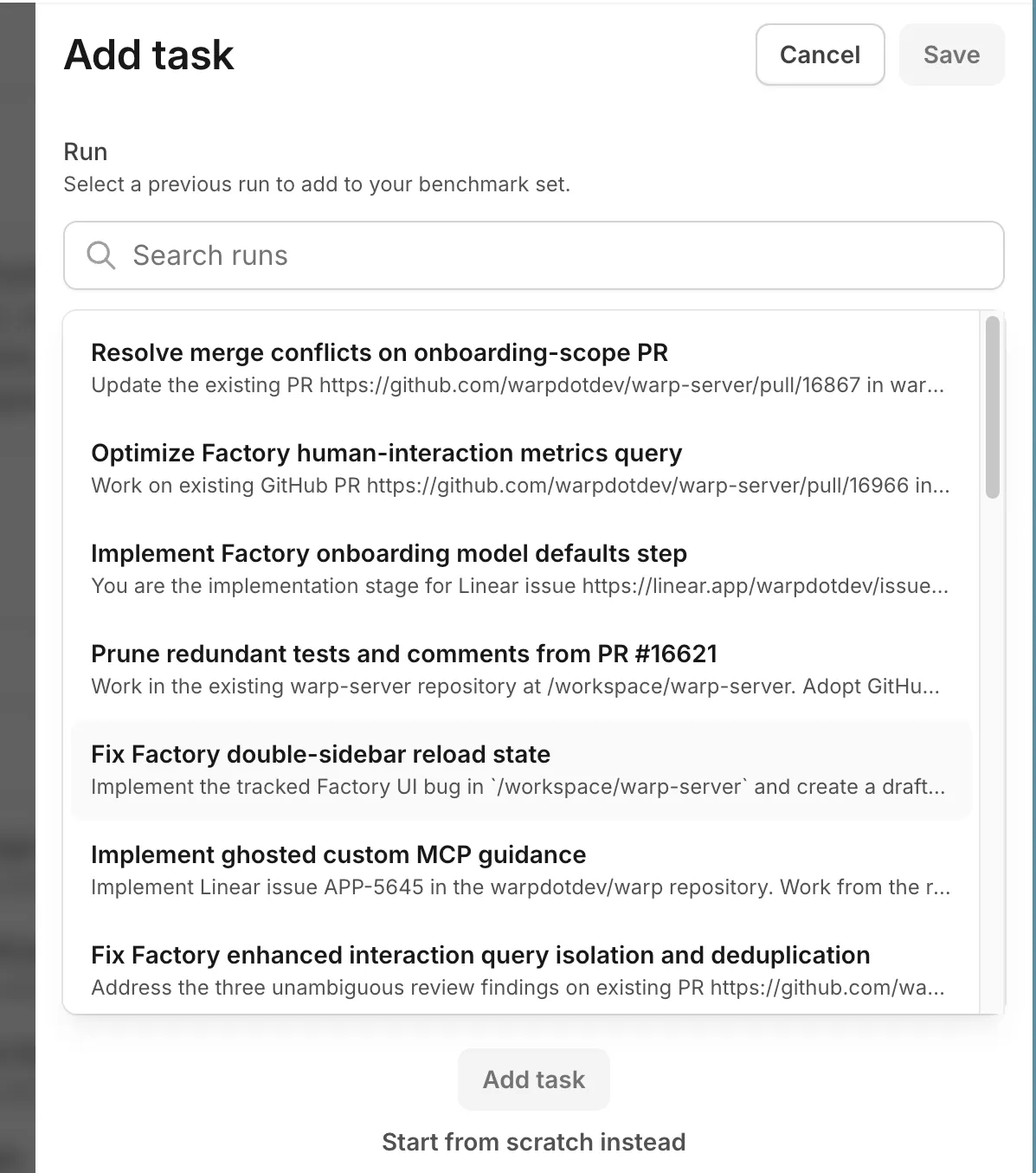
The task source picker. -
Review the task prompt and enter “Correctness criteria” for the task.
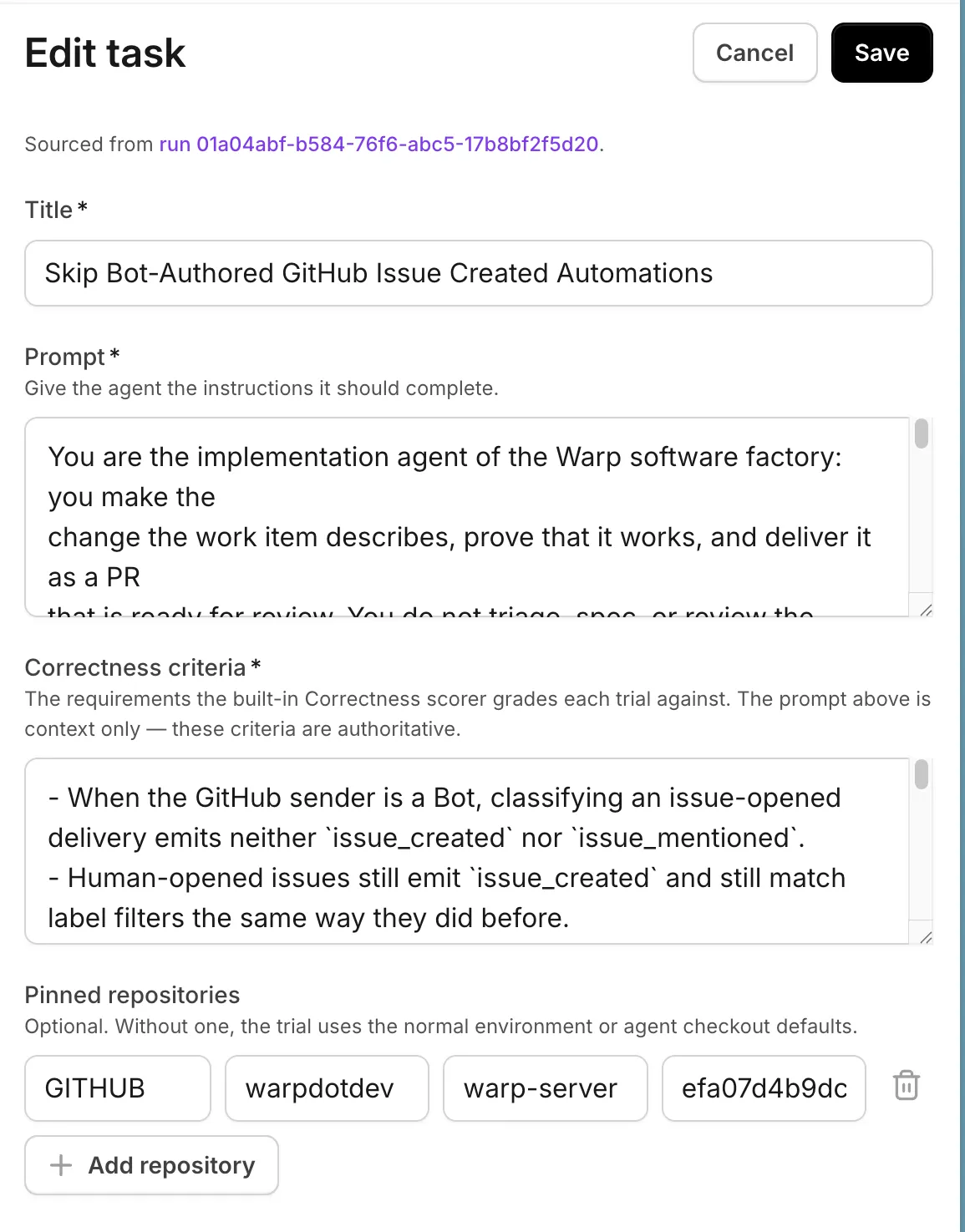
The task editor for a benchmark suite. -
Click Run. In the launch dialog, choose the model and runner for each configuration. Optionally mark one configuration as the baseline. Third-party harness comparisons are not available yet.
-
Add configurations, select Scorers, and set “Repetitions.” The dialog shows the number of trials created. More trials and Scorers increase the run’s cost.
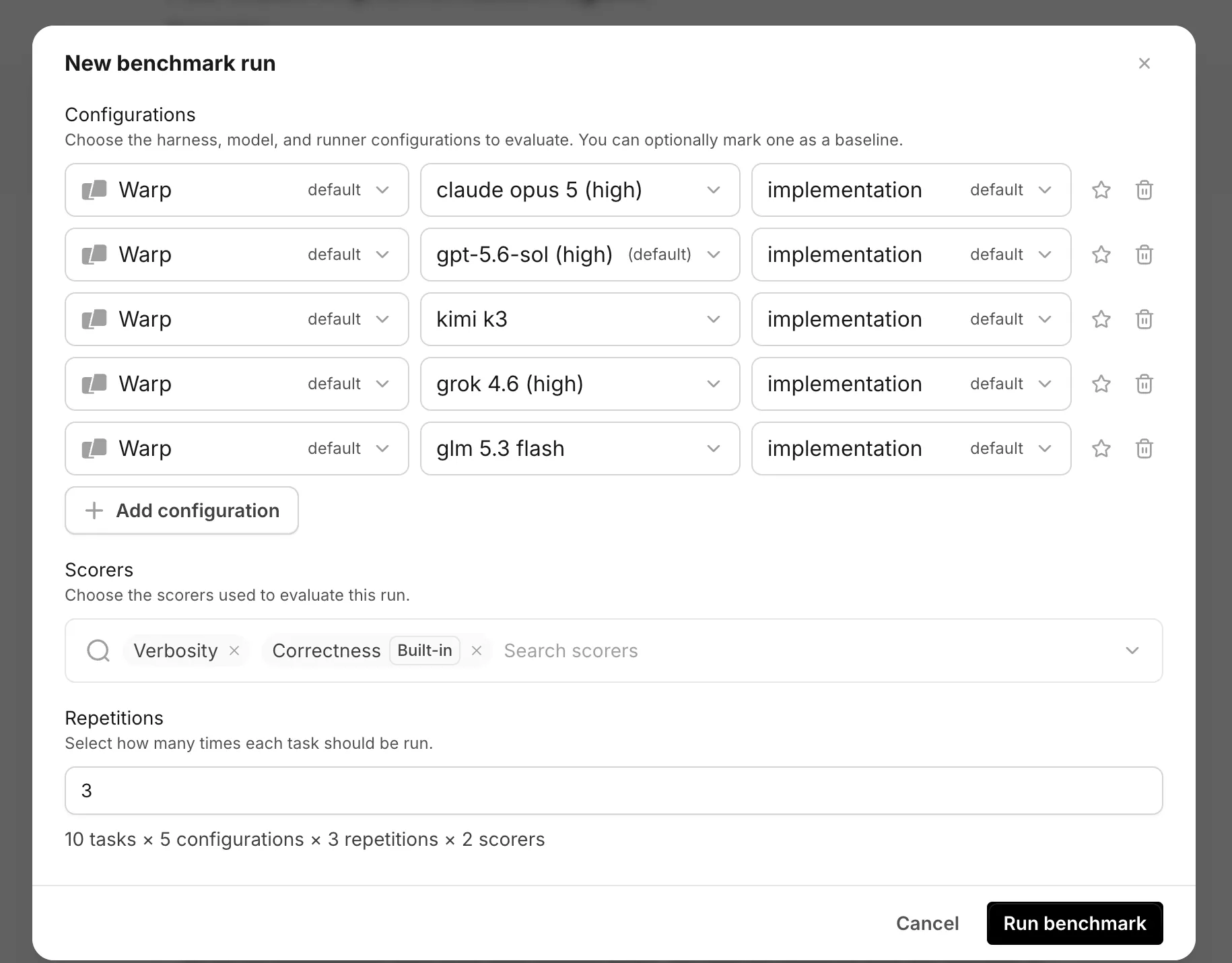
The launch configuration for a benchmark run. -
Click Run benchmark. The benchmark page shows its status and scored trials. You can cancel a running or scoring benchmark.
Review benchmark results
Section titled “Review benchmark results”After the run completes, review the result as a comparison, not as a universal model ranking:
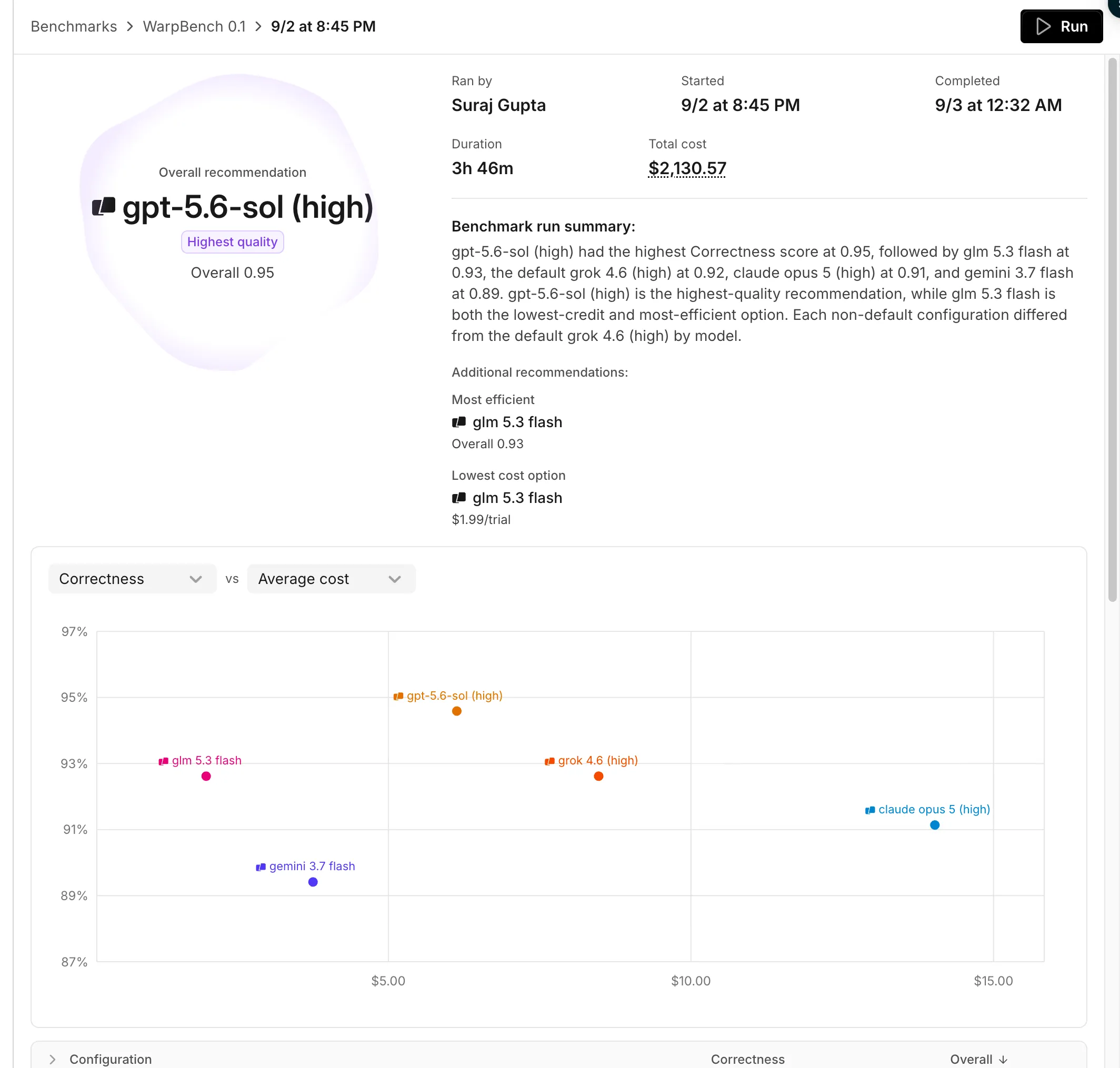
- Overall recommendation - Identifies the highest-quality configuration when at least two configurations have comparable results.
- Additional recommendations - Highlight the most efficient and lowest-cost configurations when the result supports those comparisons.
- Comparison chart - Compare the selected result dimensions across configurations.
- Overall table - Compare each Scorer’s average and the combined Overall value. Expand a configuration, task, and repetition to inspect its individual trials.
- Scorer grids - Show each task’s results across configurations for a selected Scorer.
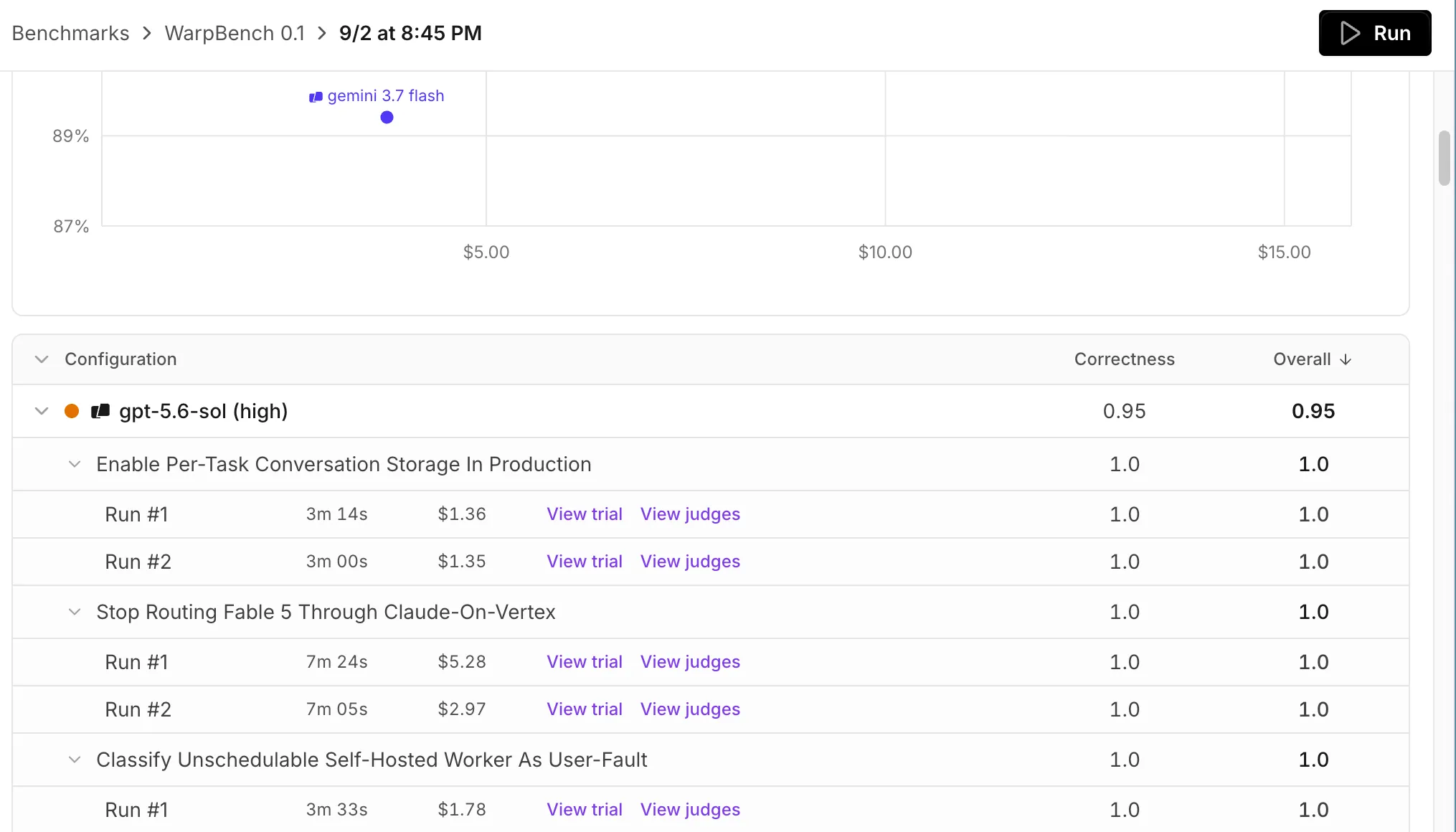
The run’s “Total cost” includes model usage for trials and Scorer usage. It estimates those costs from credits at your team’s current rate, so it is not a billed amount. A failed or cancelled benchmark shows only results that finished scoring before the run stopped.
Apply a result
Section titled “Apply a result”Change one configuration at a time. If the evidence supports a candidate, update the agent’s model or runner in the factory dashboard, or submit the change through your factory definition. Keep the relevant Scorers active, then compare later production runs with the baseline you recorded before the change.
For version-controlled factories, define reusable suites in benchmarks/<suite-slug>/suite.yaml and their tasks in benchmarks/<suite-slug>/tasks/<task-slug>.yaml. See benchmark suite files.
Related pages
Section titled “Related pages”- Measure and improve a factory - Configure Scorers and use benchmark evidence in an improvement loop.
- Factory dashboard - Track factory work, runs, and benchmark suites.
- Factory definition syntax - Define factories and benchmark suites as code.